
Getting Started with the Interface
Immediately after registration and login, you enter the main interface of the Firedrake platform. Before connecting exchange accounts and launching trading strategies, it is useful to understand the basic structure of the interface and the key control elements.
This section will help you quickly understand:
- Where the main platform sections are located.
- How to switch between exchanges.
- Where the platform balance is displayed.
- What basic profile settings are available.
General Interface Structure
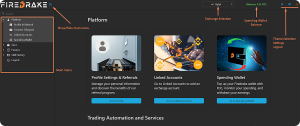
The Firedrake interface is divided into several zones.
Main Menu (Left Side)
The main platform menu is located on the left side of the screen. It allows quick navigation to any Firedrake section:
- Platform: profile and account settings.
- Spot: tools for spot trading and investment.
- Futures: tools for futures trading.
- Skill Factory: additional services and partner tools.
Note: The menu always displays only data relevant to the currently selected exchange.
Hide Menu Button
To the right of the Firedrake logo is a button to hide or show the main menu. This is particularly useful for:
- Working with larger terminal tables.
- Analyzing TradingView charts.
- Using screens with lower resolution.
Top Control Panel
The top panel contains elements that affect the operation of the entire platform.
Switching Between Exchanges
In the interface header, you will find the exchange selector, for example Bybit or Binance.
Important:
- All data in platform sections relates only to the selected exchange.
- Accounts, wallets, trades, and settings are displayed separately for each exchange.
- Example: If Bybit is selected, the Accounts section will only show Bybit accounts. Switching to Binance updates the interface to show Binance data.
Spending Wallet Balance (FDC)
To the right of the exchange selector is your Spending Wallet balance — the internal balance of the Firedrake platform.
Balance is displayed in FDC — Firedrake Credits.
- 1 FDC = 1 USDT.
- FDC is used for:
- Paying platform commissions for bot-executed trades.
- Referral program payouts.
If you do not have an unlimited subscription: With a zero FDC balance, the platform will stop opening new trades. All already opened trades will be correctly managed to completion regardless of balance.
Clicking on the balance opens a pop-up with detailed Spending Wallet information and a top-up link.
Top Right Icons
The top right corner contains three icons:
- Theme Switcher: instantly switch between Light and Dark interface themes.
- Profile Settings: open the main user account settings window.
- Logout: end the current session and log out of the platform.
Basic Profile Settings
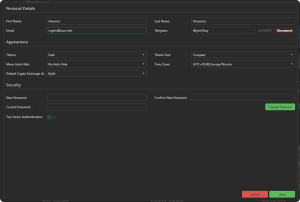
Clicking the Settings icon opens the main profile settings window.
Personal Details
View and configure your profile information:
- First & Last Name: editable fields.
- Email: displayed but cannot be changed here.
- Telegram: you can link or change a Telegram account. It is used for receiving confirmation codes and bot notifications.
Appearance
Personalize the interface:
- Theme: choose the default theme — Dark or Light.
- Theme Size:
- Normal: optimal for high-resolution monitors.
- Compact: useful for laptops or to show more data without scrolling.
- Menu Auto-Hide: configure the main menu to close automatically after a set interval.
- Time Zone: used for trade timestamps, reports, and bot schedules.
- Default Exchange: the exchange selected automatically upon login.
Security
Manage account access:
- Change Password.
- Two-Factor Authentication (2FA).
Note: 2FA is mandatory and always enabled. Working with the platform without 2FA is not possible.
What’s Next?
Once you have:
- Familiarized yourself with the interface.
- Configured the appearance.
- Checked your profile settings.
You are ready for the next step: connecting your exchange accounts and starting with Firedrake trading tools.